
Standard Fax Cover Sheet Printable Template PDF, Word
A standard fax cover sheet is the all-purpose first page of a fax. It works for almost any fax, whether you are sending a form, a signed page or an invoice, and whether it is for work or personal use. It shows who the fax is from, who it is for, how many pages are coming and what the receiver should do with them.
Pick a template below, print it or fill it in on your computer, and put it on top of your pages. Every template here is free. The Word version at the bottom lets you add your own company name and logo.
You may also like:
- basic fax cover sheet
- personal fax cover sheet
- fax cover sheet google docs
- fax cover sheet pdf
- professional fax cover page
- editable fax cover pages
- confidential fax cover sheet
- blank fax cover letter
- IRS fax cover sheet
- simple fax cover letter
- examples of fax cover sheet
- attention fax cover sheet
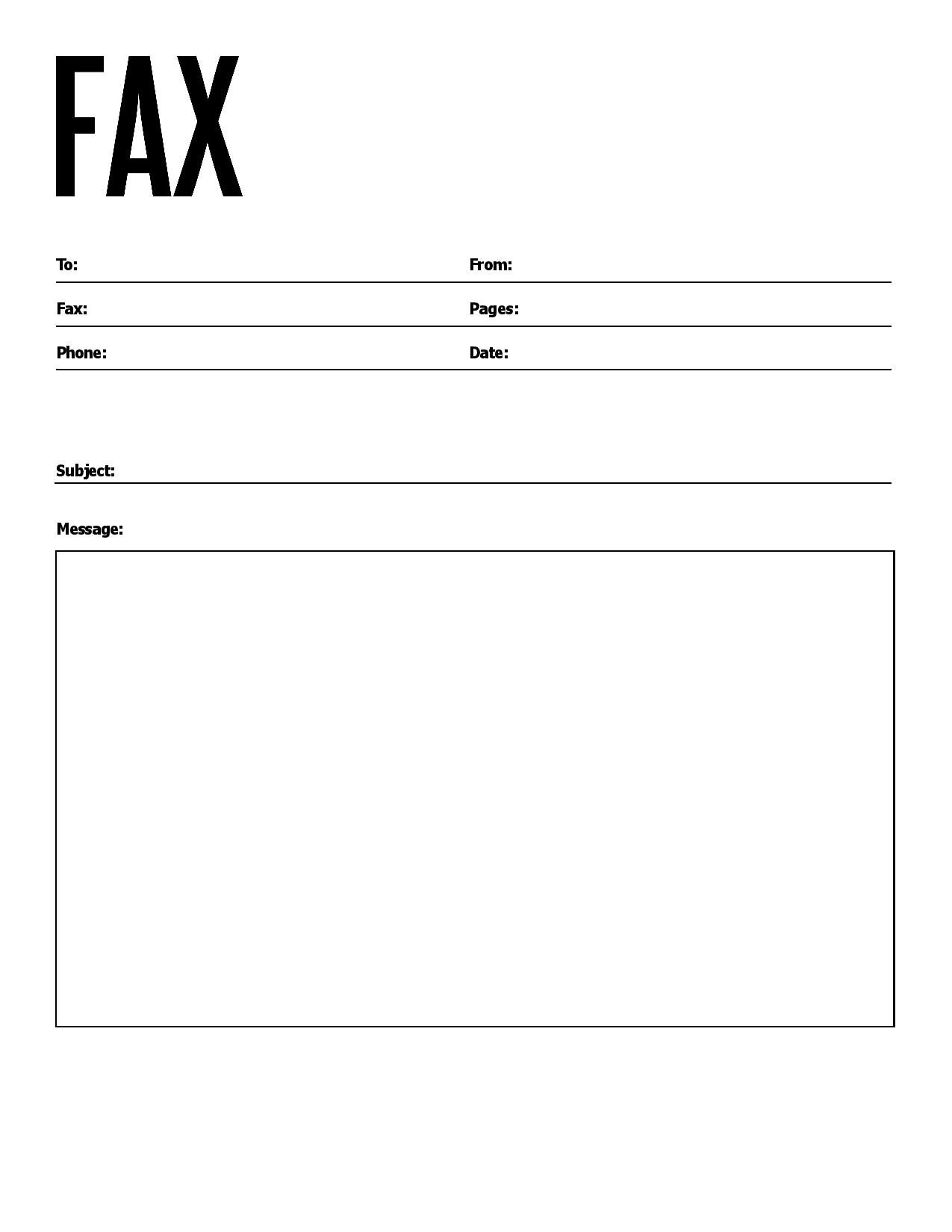
PDFBest for: everyday work and personal faxes
Standard Fax Cover Sheet
A good default when you are not sure which design to choose. Use it for invoices, forms, signed pages and usual office faxes.
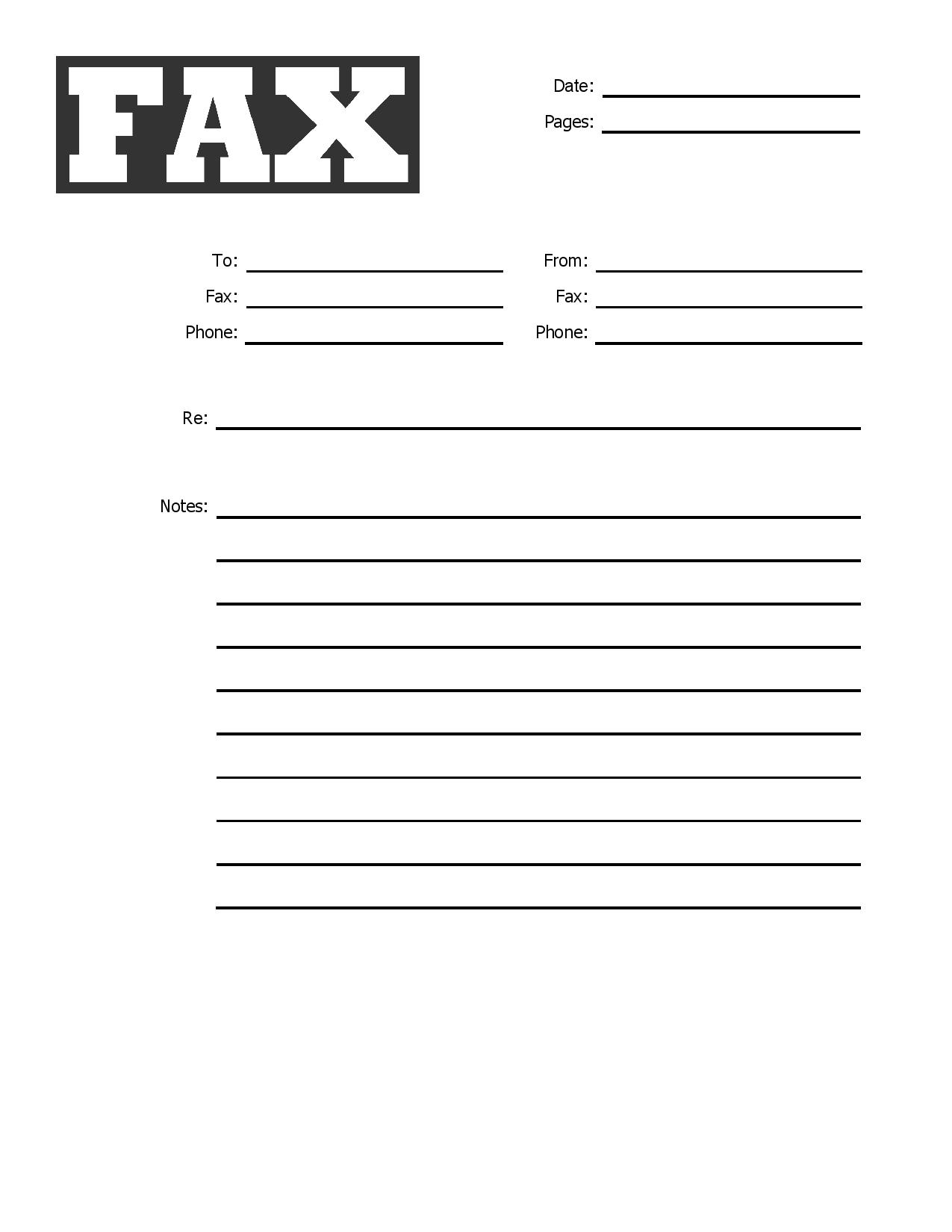
PDFBest for: printing and writing by hand
Standard Fax Cover Sheet Printable
Print as many copies as you need and keep a stack by the fax machine. Fill in each one by hand in black ink.
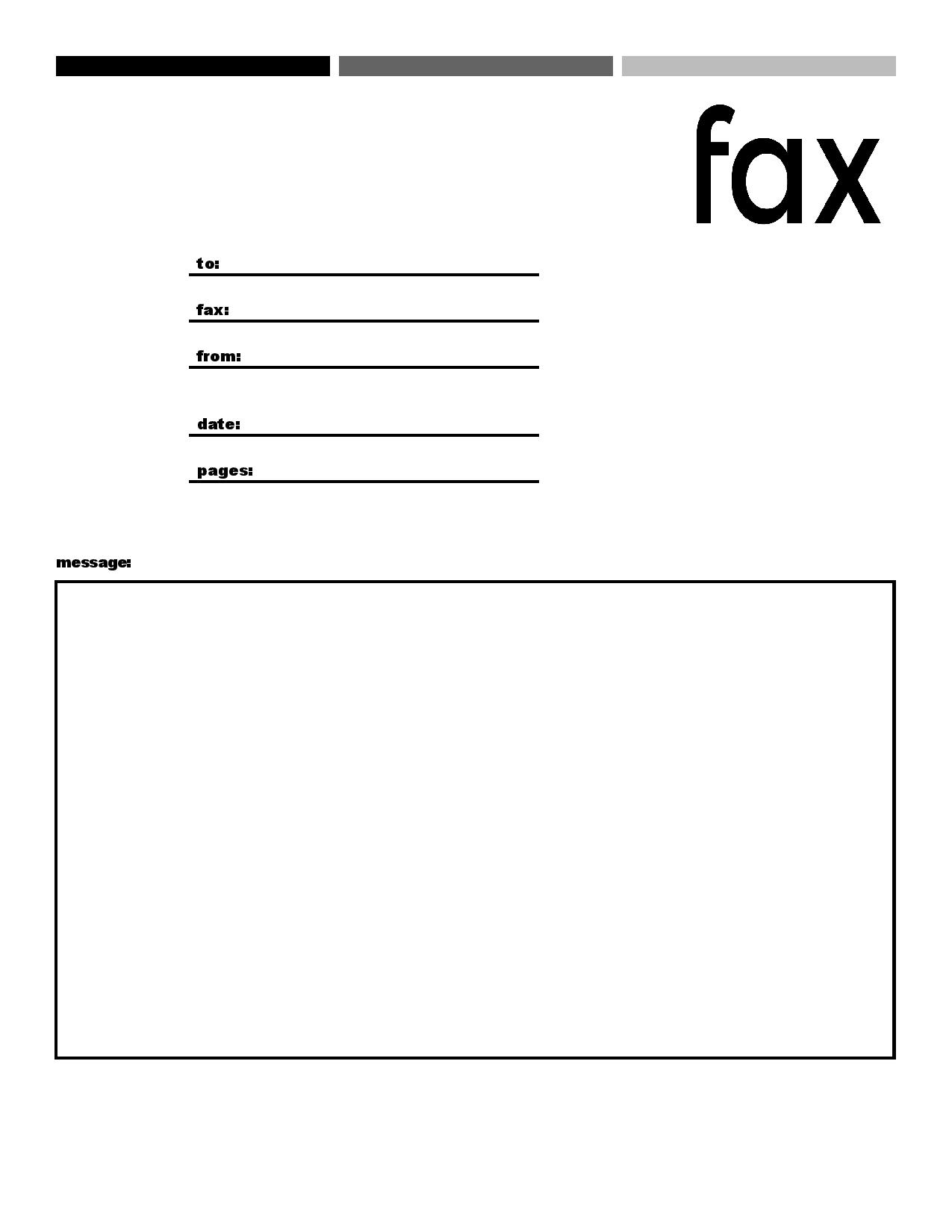
PDFBest for: a different look for your office
Standard Fax Cover Sheet Template
Same standard fields as the others in a different design. Pick the one you like best.
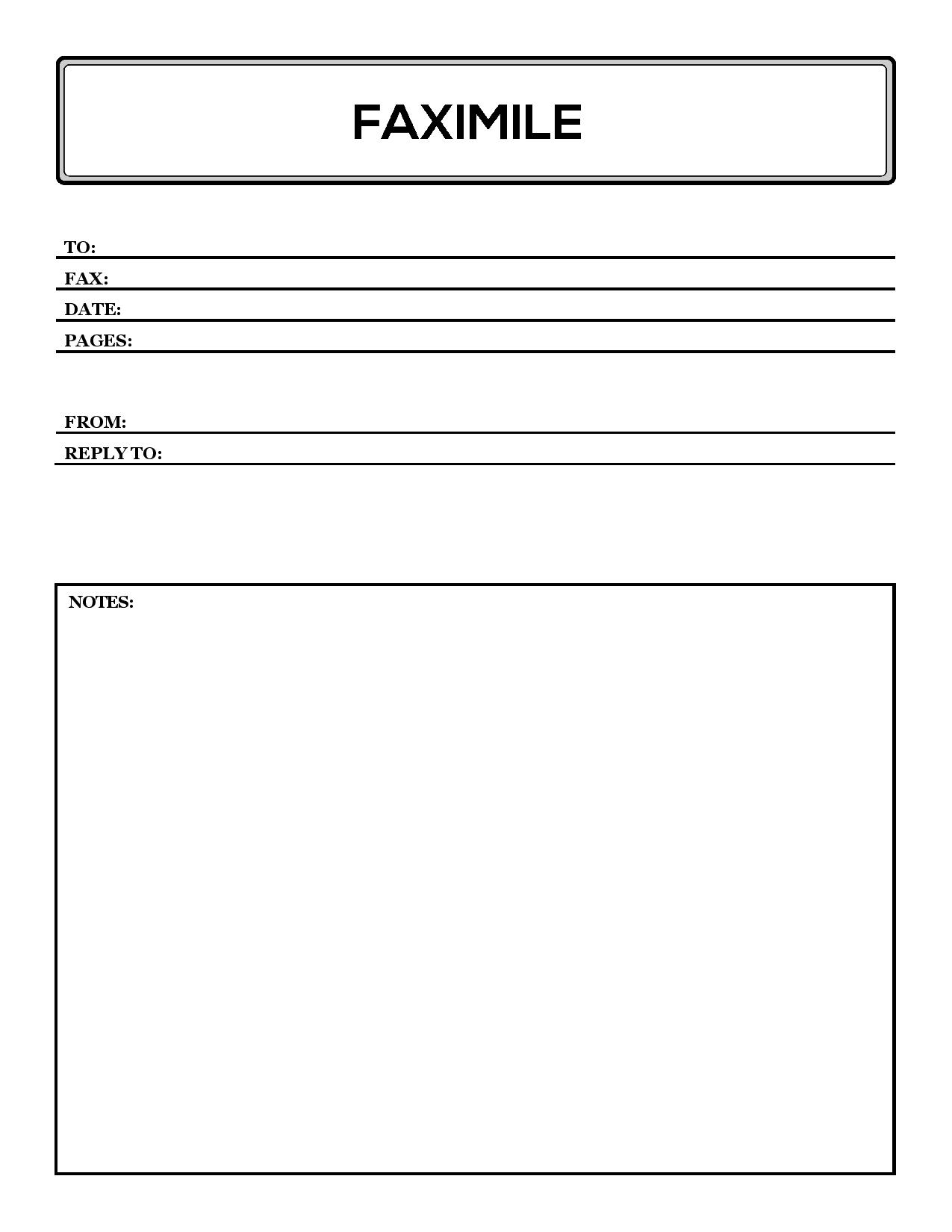
PDFBest for: a free, ready-to-print copy
Free Standard Fax Cover Sheet
Open it, print it and send. It works for personal faxes too, since a standard sheet has no special purpose.
Standard Fax Cover Sheet in Word
Want to type your details and add your company name and logo? Use this editable version. It also comes as a PDF.
NewWordPDFBest for: typing your details and adding a logo
Standard Fax Cover Sheet Word Template
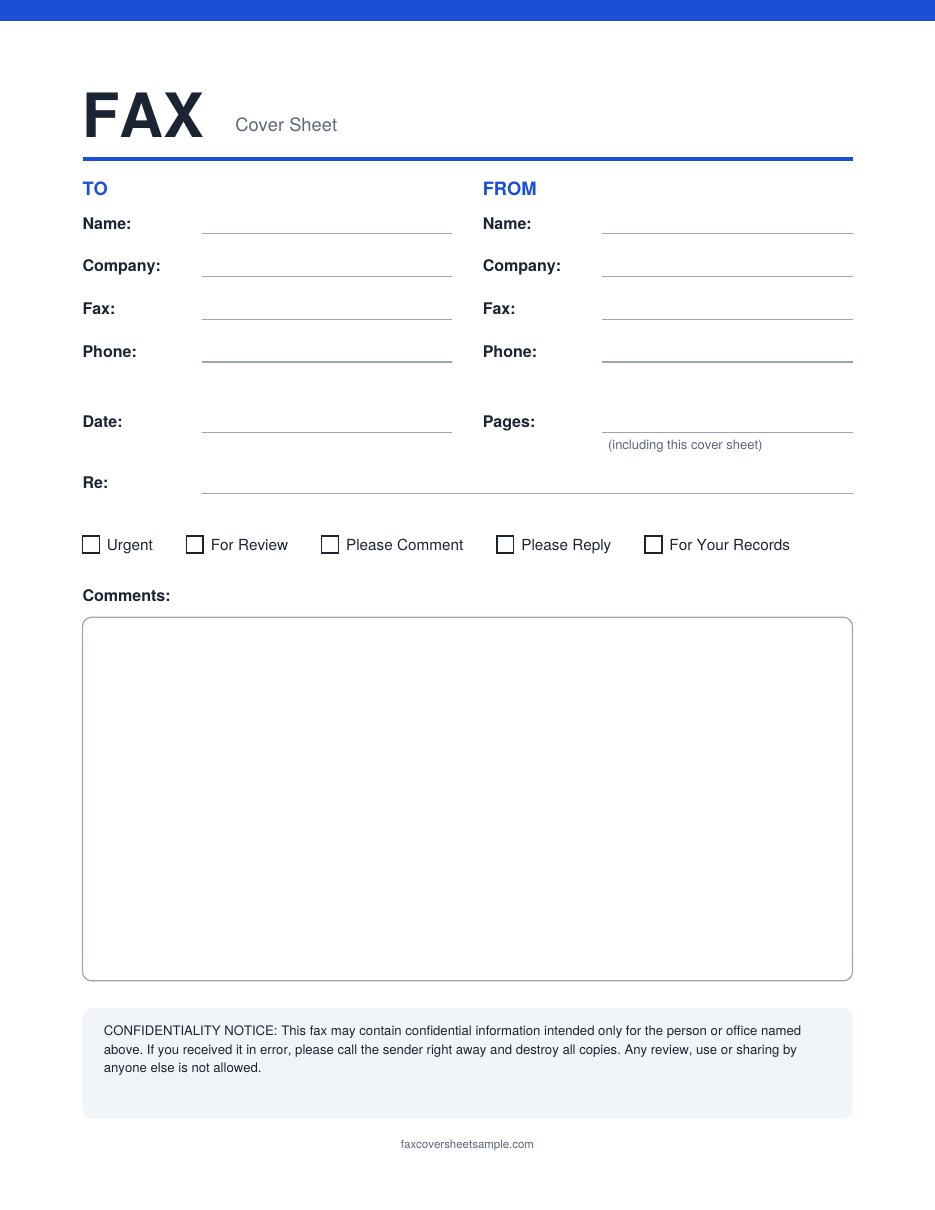
To and From sections with name, company, fax and phone, plus date, pages and a Re line. Tick boxes for Urgent, For Review, Please Comment, Please Reply and For Your Records sit above a large comments box, with a short confidentiality notice at the bottom.
What a Standard Fax Cover Sheet Includes
From top to bottom, most standard cover sheets follow the same order:
- The word “Fax” or “Fax Cover Sheet” at the top, so the page is easy to spot.
- To: the receiver’s name, company and fax number.
- From: your name, company, phone and fax number.
- Date and pages: when you sent it and how many pages, including the cover sheet.
- Re line: a few words about what the fax is.
- Tick boxes: quick instructions for the receiver (explained below).
- Comments: a short note, and a privacy notice at the bottom if the pages are private.
For help with each field, read how to fill out a fax cover sheet.
What the Tick Boxes Mean
Standard sheets have a row of boxes that tell the receiver what to do, without extra writing. These are the common ones:
| Box | What it tells the receiver | Use it when |
|---|---|---|
| Urgent | Please read this first | There is a deadline |
| For Review | Please look this over | You want someone to check a document |
| Please Comment | Please send back your thoughts | You want feedback or changes |
| Please Reply | Please answer me | You need a reply by phone or fax |
| For Your Records | No action needed, just keep it | You are sending a copy |
Tick only the boxes that apply. If everything is marked Urgent, nothing stands out.
How to Add Your Company Name and Logo in Word
A logo makes the sheet look like it belongs to your business. Do this once and save it as your own master copy:
- Open the Word file and click at the very top of the page.
- Click Insert > Pictures > This Device and choose your logo file.
- Drag a corner of the logo to make it smaller. A small logo is enough.
- Type your company name, address and fax number next to it.
- Click File > Save As and save the file with a clear name, such as “Fax cover sheet, my company”.
- For each new fax, open that copy, change the receiver, date, pages and note, then choose File > Save As > PDF to send it.
Use a black and white logo if you can. Color logos turn grey when faxed.
Standard, Simple, Basic or Professional: Which One?
| Choose | When |
|---|---|
| Standard (this page) | You want every usual field, with tick boxes, for any fax |
| Simple | You want as little as possible on the page |
| Basic | You need a quick page with only the main details |
| Professional | You are faxing clients, lawyers or government offices |
| Confidential | The pages are private |
Common Mistakes With Standard Cover Sheets
- Forgetting the cover sheet in the page count. Count it, so the receiver can check that nothing is missing.
- Leaving the fax number blank. The receiver may need it for a reply.
- Ticking every box. Choose the one or two that matter.
- Writing a long note. Two to four lines is enough. Put details in the pages that follow.
- Reusing an old filled-in sheet. An old date or the wrong receiver causes confusion. Start from your clean master copy each time.
FAQs
What makes a fax cover sheet “standard”?
It has the usual fields in the usual order: To, From, Date, Pages, a Re line, tick boxes and a comments area. It is not made for any one job, so you can use it for almost any fax.
Can I use a standard cover sheet for personal faxes?
Yes. Just fill in your own name and phone number and leave the company line empty.
Can I add my logo to the PDF?
Add it in the Word file, then save it as a PDF. The PDF versions are not made for editing.
Do I need to tick any boxes?
No. Tick one only if it helps the receiver, such as Urgent when there is a deadline.
Should a standard sheet have a privacy notice?
If your pages are private, yes. Use the notice at the bottom of the Word template, or use a confidential cover sheet.